
Discord Web is the browser version of Discord. Just go to discord.com/app and sign in. There’s nothing to download or install.
Using Chrome, Edge, Firefox, or Safari, you can read messages, join servers, chat with friends, and make voice or video calls on Windows, macOS, Linux, and most other computers. (Safari may have limits with calls and screen sharing.)
In this guide, you’ll learn how to log in, create an account, join servers, use voice and video calls, and fix common problems. This guide will help you understand how to use Discord Web effectively in your browser.
What Is Discord Web?
Discord Web is the version of Discord that runs in your web browser. It lets you send messages, join servers, and make voice and video calls without installing the desktop app. You only need a compatible browser, an internet connection, and a Discord account.
What Can You Do on Discord Web?
Some of the useful communication capabilities that Discord Web offers are:
- Send and receive private messages.
- Join communities and participate in server conversations.
- Voice and video calls.
- Sharing pictures, docs and links.
- Create and manage Discord servers.
- Joining voice channels and group chats.
- Screen sharing in supported browsers.
- Managing your account settings and notifications.
A decent replacement for the installed app for daily messaging and community engagement is the internet version.
How to Use Discord Web in Your Browser
Quick answer: how to open Discord Web
1. Open Chrome, Edge, Firefox, or Safari.
2. Go to discord.com/app.
3. Log in with your email or phone number and password, or scan the QR code with your phone.
4. Start chatting, join servers, or make calls.
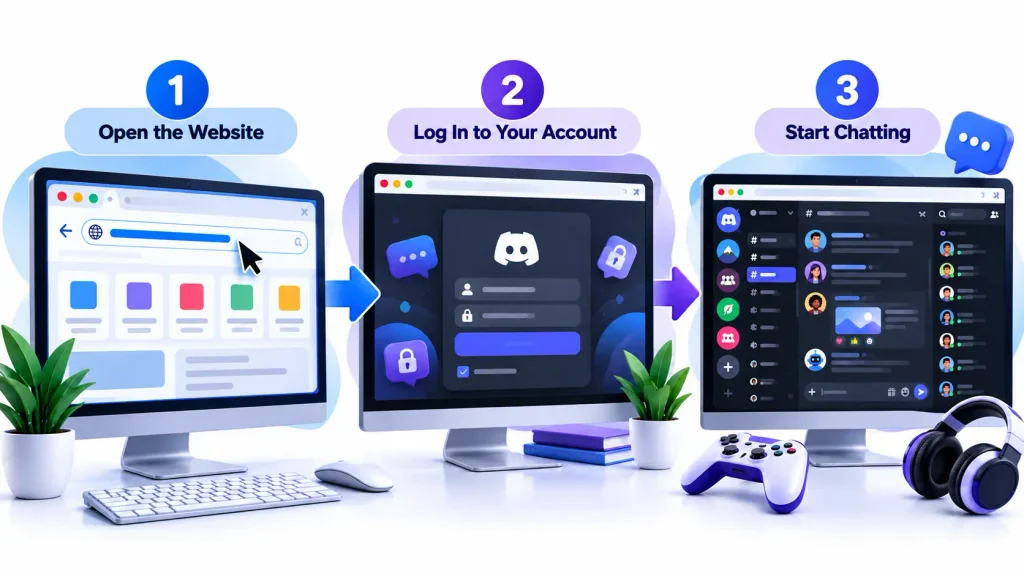
Below are the same steps in more detail.
Step 1: Use a Compatible Browser
Open Google Chrome, Microsoft Edge, Mozilla Firefox, or Safari.
Older browsers may suffer compatibility issues with audio, video or screen sharing functions thus we urge you to use the latest version of a supported browser.
| Browser | Messaging | Voice and video | Screen sharing |
| Google Chrome | Yes | Yes | Yes |
| Microsoft Edge | Yes | Yes | Yes |
| Mozilla Firefox | Yes | Yes | Yes |
| Safari | Yes | May be limited | May be limited |
Chrome and Edge usually give the smoothest experience for calls and screen sharing.
Step 2: Go to the Official Discord Website
Visit the official Discord website and then click Open Discord in your browser. This will take you to Discord’s web app where you can sign in or establish an account .And be sure you are on the real website before you type in any personal information.
Step 3: Sign into your account
If you are a member already, enter your registered email address or phone number and password. If you don’t have an account yet, you can sign up for one right there.
Step 4: Check out your Discord Dashboard
When you log in, you should see your Discord dashboard. Here you can start discussions, browse servers, control notifications, and engage with other users. No installation needed, and your existing account info is still there.
How to Log In to Discord Web
Discord offers various login options, allowing you to easily sign into your account in the way you like.
Log In With Email and Password
The most popular way is to give your account credentials.
- Go to the Discord login page.
- Enter your registered email address or mobile no.
- Enter your account password.
- Conduct any mandatory security checks.
- Choose Log In to access your account.
If you’ve got two-factor authentication enabled, you’ll need to do the additional verification step.
Log In With a QR Code
Already logged in with the Discord mobile app? QR code login can save you time.
- Go to your computer and open Discord’s login screen.
- Find the QR code shown on the site.
- Open the Discord app on your phone.
- Locate the QR code scanning feature in the mobile app.
- Kindly check the code and accept the request for login.
Once the request is authorized, your browser session will be opened.
Only approve QR login requests that you initiated. Fraudsters sometimes lure people into entering their details on fake login pages in order to take over accounts.
How to Create a Discord Account Using Your Browser
If you are new to Discord, you can register without downloading the desktop software.
1. Go to the Registration page
On the Discord login screen, pick the sign-up option that suits you.
2. Enter Your Information
Kindly provide us with the necessary details such as your email address, username, password and date of birth. Choose a safe password that you don’t use for your other accounts.
3. Finalize Account Verification
Discord may require you to do a security check or validate your email address. Follow the instructions shown on the screen.
4. Set Up Your Profile
Once you’ve signed up you’ll be able to add a profile picture, change your display name and change your settings. Your account is ready to send messages, join servers, and connect with communities.
How Does the Discord Web Interface Work?
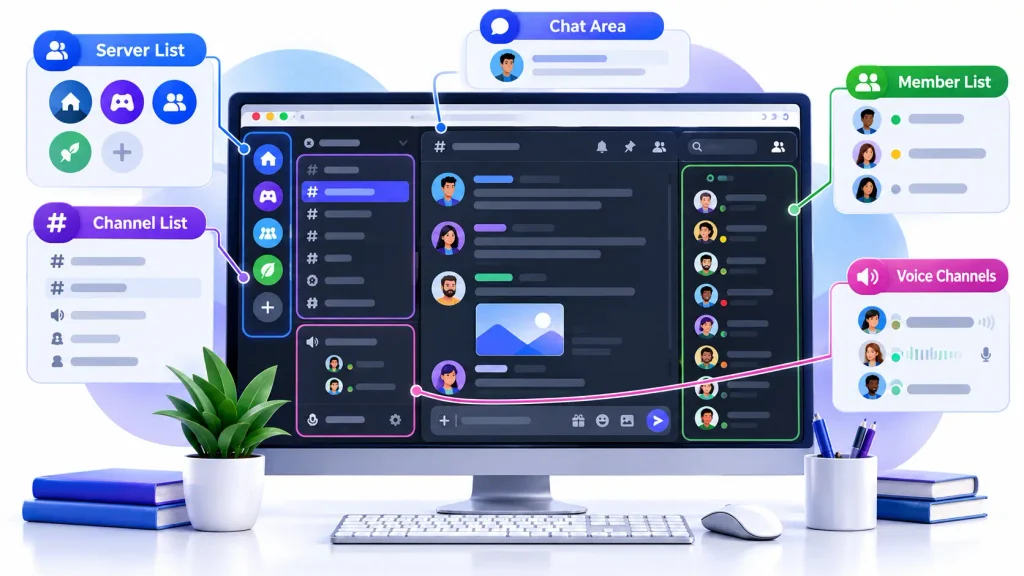
Opening Discord for the first time might be a bit daunting, particularly if you’re new to the site. But if you understand the intent of its primary portions, they are simple.
Server Sidebar
On the left sidebar, you can see symbols of the servers you joined. Selecting a server reveals its channels, its members and the community features it has to offer.
Text Channels
A text channel is a location where members of a server can communicate through written messages. Often communities have different channels for announcements, queries, general chat, and subjects.
Voice Channels
Voice channels let you speak with other members directly, so there’s no need for a regular phone call. Video and screen sharing might also be available, depending on permissions and browser compatibility.
Personal Messages
You can utilize direct messaging for private chatting with other members. You can message, share material and start calls without being in a public server channel.
Users Settings
On the settings page, you may manage your profile, privacy, appearance, notifications, and audio devices. It can make Discord easier to go about if you take a few minutes to check out these choices.
How to Join a Discord Server Through a Browser
Discord servers bring individuals together through shared interests in gaming, technology, education, entertainment, and business. Getting into a server through Discord Web takes only a few easy steps.
Step 1: Find a Server Invitation
You can get an invitation through a friend, an online community or website. You may also find certain public communities through Discord’s server discovery features.
Step 2: Open the Invitation
Select the invitation link while using your browser. If you’re not already signed in, Discord may ask you to log in first.
Step 3: Join the Community
Review the server information and accept the invitation. Some communities need new members to agree to rules or undergo verification to get access to channels.
Step 4: Start Participating
Explore the available channels and introduce yourself where appropriate. Go through the server’s rules before you post anything, especially in communities that moderate closely.
How to Send Messages on Discord Web
Messaging is among Discord’s most used features, and it runs smoothly in the browser too.
Sending Messages in Text Channels
Open a server, choose the text channel where you wish to join. Click on the message box, input your message and hit Enter. You can also reply to individual messages, mention other people, add emoticons and upload compatible files.
Private Messages
To initiate a private chat, visit your direct messages or friends list and tap the person you wish to contact. Then you can send messages like you would in a server channel. Note that privacy settings may prevent you from messaging specific users.
Edit and delete messages
Made a typing error? Discord lets you alter the messages you have sent. You can also remove your messages using the messaging choices available. Features that are useful for fixing information or keeping talks orderly.
How to Make Voice and Video Calls in Discord Web
Discord isn’t only about text messaging, though. The browser version of the tool also offers real-time conversation.
How to Join a Voice Channel
Open a server and select an available voice channel. Your browser may request microphone permission. Grant the permission if you plan to talk during the chat. Once connected, you can talk with other participants and adjust your audio settings.
How to Start a Video Call
Start a direct message or voice channel, as appropriate. Choose the video option and give permission to access the camera when asked. Test your camera and mic before entering an important conversation.
How to Share Your Screen
You can screen share on Discord Web as well on supported browsers. While on an active call, tap the screen share option and select the browser tab, application window, or screen you want to share.
Audio sharing options will differ depending on your browser and operating system.
How to Make Your Own Discord Server
You can create your own Discord community without the desktop software.
Step 1: Choose the Add Server Option
Find the plus icon on the Discord server’s sidebar.
Step 2: Select a Server Template
You can start with a blank server or use an available template based on the purpose of your community.
Step 3: Give your server a name
Give your community a distinct name that reflects what it is. You can also add a server icon to make it distinctive.
Step 4: Sort Your Channels
Create text and audio channels for various conversations.For example, a tech community might have various channels for announcements, technical questions, and casual chat.
Step 5: Adding Members
Create an invite link and give it to people you wish to join. Once your community gets bigger, you can set up roles, permissions, and moderation controls.
Discord Web vs. Discord Desktop App
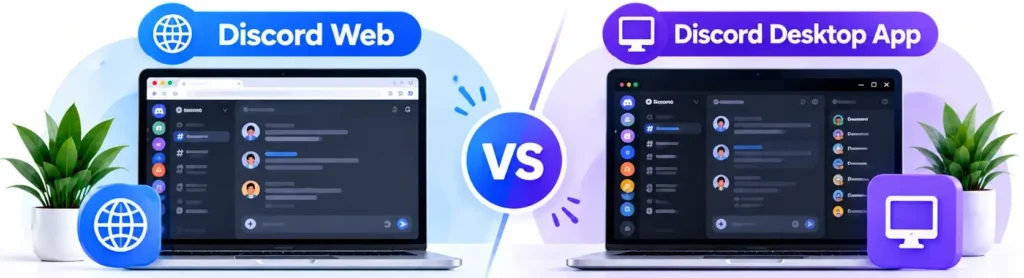
Although both versions provide similar core features, a few differences are worth considering.
| Feature | Discord Web | Desktop App |
| Installation | Not required | Required |
| Text messaging | Available | Available |
| Server management | Available | Available |
| Voice and video calls | Supported | Supported |
| Screen sharing | Browser-dependent | More integrated |
| Operating-system integration | Limited | More extensive |
| Quick access | Very convenient | Requires installed app |
| Regular daily use | Suitable | Often more convenient |
Why Choose Discord Web?
If you want to jump right in without installing any software, the browser version is great. It’s especially handy for occasional users, or folks who change computers a lot.
Why Choose the Desktop Application?
The desktop version can offer more interaction with your operating system and might give you a more consistent experience for frequent calls, gaming and sophisticated functions.
If you spend all day on Discord, the installed version might be more convenient.
How to Fix Common Discord Web Problems
Like any web browser service, Discord Web can have technical problems from time to time. Fortunately, many of the typical problems have straightforward remedies.
Discord Web Not Loading: How to Fix It
If Discord isn’t opening properly, reload the page and make sure your internet is working. You can also try deleting cached website data, deactivating troublesome browser extensions temporarily, or opening Discord in another browser .
If it still doesn’t work, check if Discord is having a service outage.
Discord Web Login Not Working: How to Fix It
First of all, check that your email address and password are right. If your password has slipped your mind, start the account recovery process to reset it. Verify whether further authentication is needed.
Discord Web Microphone Not Working: How to Fix It
Verify your browser’s site permissions to make sure microphone access is enabled. Then go to Voice & Video options within Discord and make sure the right input device is selected.
Discord Web Keeps Disconnecting: How to Fix It
You may get disconnected frequently because of an unreliable Internet connection, problems with your browser or temporary service problems.
You may choose to reboot your browser, kill any bandwidth-heavy applications, or try a more stable connection.
Discord Web Notifications Not Showing: How to Fix It
Review your notification settings in Discord and confirm your browser is set to receive notifications.
Your computer’s notification settings or Do Not Disturb mode may also be preventing notifications from coming through.
Is Discord Web Safe to Use?
Discord Web is safe to use when you open it from the official website (discord.com) and follow basic security practices. Like any online platform, Discord users can be targeted by scams and phishing links, so it is important to protect your account.
For the latest safety tools and guidance, visit Discord’s official Help Center and Safety Center.
Turn on Two-Factor Authentication
Two-factor authentication is an extra layer of security on top of your password. It reduces the chance of someone getting into your account without permission.
Don’t click on suspicious links
Beware of unsolicited invitations, attachments that you didn’t ask for and promises that sound too good to be true. Never share your login credentials or authentication codes with anybody.
Log Out of Shared Computers
When using Discord on a computer others share, make sure to sign out once you finish. Do not save your password on any devices you don’t control.
Tips for a Better Discord Web Experience
A few simple adjustments can make Discord more comfortable and efficient to use.
Keep your web browser Updated
Most modern browsers are better in terms of compatibility , performance , and security .
Sort Your Servers
If you’re in a lot of communities, group related servers into folders to keep things organized.
Configure Your Notifications
Mute channels you don’t care about and modify notifications for conversations you want to keep track of.
Use a Strong Internet Connection
Good Internet connections are especially vital for voice calls, video calls and screen sharing.
Learn Useful Keyboard Shortcuts
Discord includes keyboard shortcuts for common actions and moving around the app. Learn a few, it will enable you to get into conversations more rapidly.
Closing Thoughts
Discord Web offers an easy method to connect, collaborate, and engage in online groups without installing any extra software. You can do most of the core Discord stuff right in a supported browser, from sending messages and joining servers to making voice conversations and organizing your own community.
This is especially beneficial if you want fast access to your account or if you prefer to keep your communication tools in your browser. For frequent users, the desktop application still provides advantages, especially where greater system integration is required. However, for chatting with friends and being a part of the community, Discord Web is a good and convenient solution.
If you want to begin on Discord without installing anything, just open the browser version, sign in with your account and explore the features that matter most to you. For more simple, step-by-step guides like this, have a look at our blog.
Discord Web FAQs
Can I use Discord without installing it?
Yes! Go to discord.com/app in a compatible web browser and log in to your account. You can use Discord without downloading or installing anything. Your servers, messages, and friends will be available just as they are in the desktop app.
Is Discord Web free to use?
Yes! Discord Web is free to use. You can send messages, join servers, and make voice and video calls without paying. Discord also offers optional paid subscriptions, such as Nitro, which add extra perks like bigger uploads and profile customization.
Can I Use Discord Web on Google Chrome?
Yes! Google Chrome supports Discord Web (message and compatible voice and video).
Can I join Discord servers without downloading?
Yes! server invitations can be accepted and communities joined right from the browser version.
Does Discord Web Support Video Calls?
Yes! Video calling is supported in compatible browsers, provided you have allowed the required camera and microphone permissions.
Why Is Discord Web Running Slowly?
Slow performance can be caused by browser extensions, too many open tabs, insufficient system resources, or an unreliable Internet connection.
Is It Possible to Run Discord Web Alongside the Desktop App?
Yes! You can log in to the same Discord account on different supported clients, however the call behavior and active sessions may differ.
Which Is the Better Choice: Discord Web or the Desktop Version?
It’s all about what you need. The browser version is great for rapid access, but the desktop program is frequently superior for frequent and extensive use.