
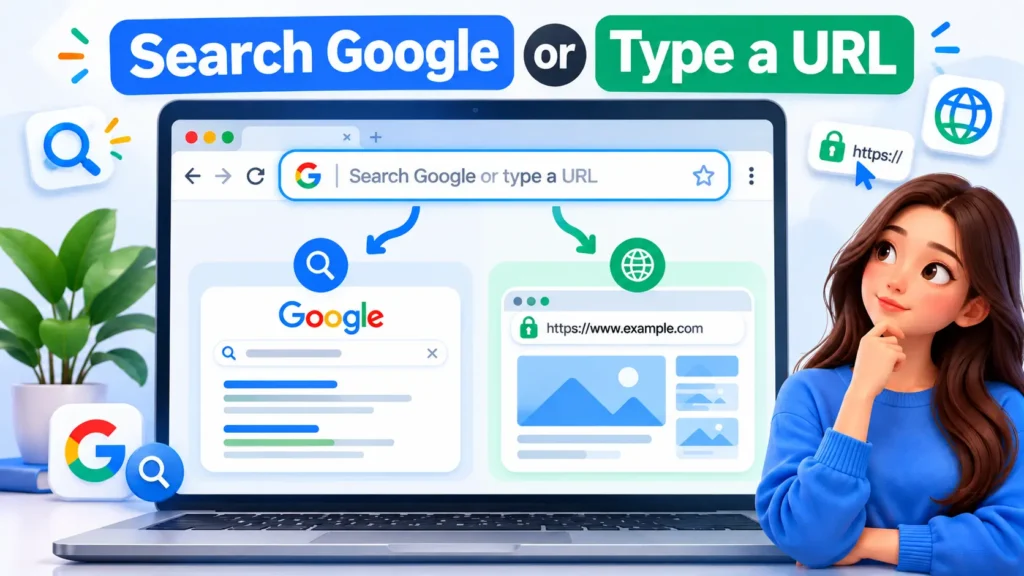
Open Chrome, Firefox, Edge, or nearly any other browser, and there it is: a long box sitting at the top of the window. Type youtube.com and you land on YouTube. Type “how to make pancakes” and you get recipes instead. Same box, two very different results.
That little box hides more work than most people realize. Ever opened a new Chrome tab and stared at that faint “Search Google or type a URL” text? I bet you’ve wondered what it actually wants from you. And how can one little field do two jobs at once? How does Chrome even know which one you’re after?
Short answer: the address bar either takes you straight to a website, or it passes whatever you typed to a search engine. That’s it. You don’t need to be techy to get how it decides.
What Does “Search Google or Type a URL” Mean?
Honestly, it’s just a hint. This single field is built to handle two different jobs.
You can either look up a subject you’re curious about or enter the full web address of a page you want to reach.
Say you want YouTube. Type youtube.com, hit Enter, and boom, the browser knows exactly where to go and opens the site.
But what if you have no site in mind and you type something like “best free video editing software”?
The browser cannot treat that as a destination, so it hands the words to your default search engine. That engine replies with a page of results: websites, videos, images, news, and more.
Chrome calls this combined field the Omnibox, a mix of “omni” and “box,” because it does everything from one spot. If Google isn’t your favourite, the browser settings let you replace it with another search engine.
So the message boils down to this: use the box to visit a site directly, or to look something up.
What Is a URL?
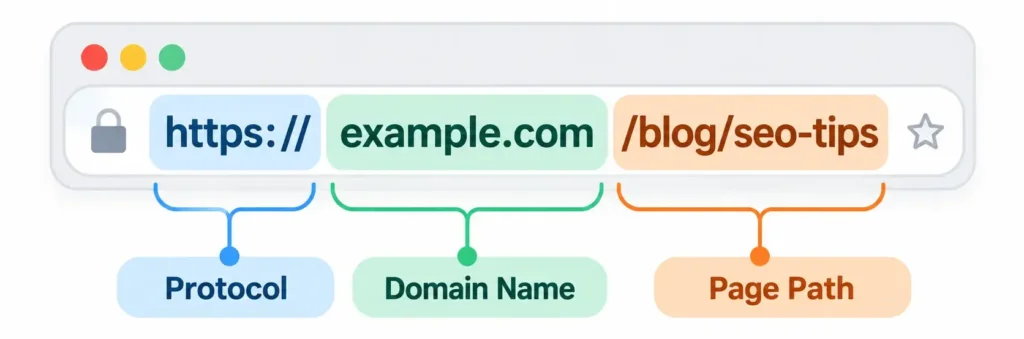
Before going further, let’s quickly clear up what a URL actually is. The letters stand for Uniform Resource Locator, which is just a formal name for a web address.
Here is an example:
https://www.example.com
Each piece has a role. The https portion states how the browser and the site will communicate. The example.com portion is the domain, which names the website. The “/about” ending tells the browser which particular page of that website to open.
You rarely need to type all of that. Browsers fill in the gaps, so entering example.com is often enough for the browser to open the secure version of the site.
What Happens When You Type a URL?
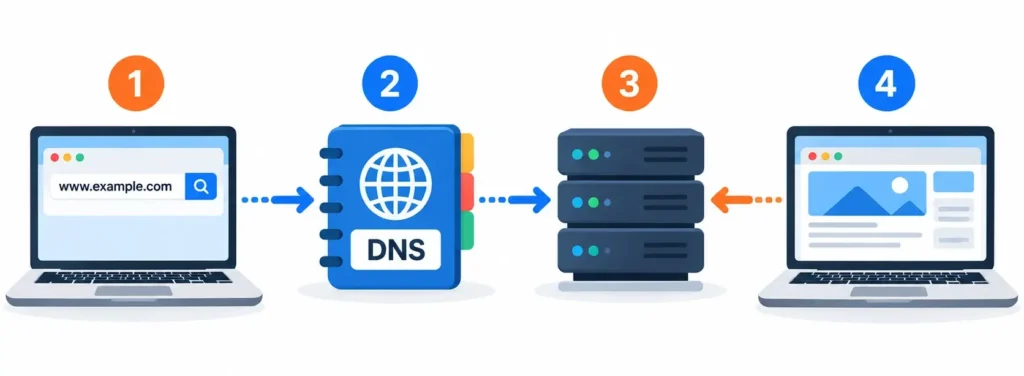
Suppose you enter https://www.example.com and press Enter. A chain of steps begins.
The browser’s first job is finding where that site lives. We’re good with names, but computers only work with numbers, called IP addresses. This gap is filled by DNS, short for Domain Name System. Think of a phone book. You look up a name, it gives you the number.
Once the browser has the address, it sends a request. The server sends back all the files needed for the page. HTML gives the structure, CSS handles how it looks, JavaScript makes things work, and then there are images, fonts and so on.
The browser puts everything together and shows you the finished page.
What Happens When You Search Instead?
Now imagine you type the phrase “how does cloud storage work” and hit Enter instead.
Here the browser can tell it isn’t a web address, so it treats your words as a search. If Google is your default, your text goes to Google, which puts together a results page and sends it back.
While you type, the browser may also offer suggestions to save you time.
A results page can include several kinds of content:
- Regular website listings
- Paid ads
- Quick answer boxes
- Images and videos
- Maps
- News stories
The results page changes with your query, and Google arranges it based on what it believes will be most useful to you.
The key difference is easy to remember: entering a URL takes you to a place you already know, while searching helps you find a place you don’t.
URL or Search Query — How to Tell the Difference
Picture two situations. If you type wikipedia.org, you are naming a destination. If you type what is artificial intelligence, you are asking a question.
Here is a handy way to see it:
| What You Type | What Usually Happens |
| youtube.com | The browser opens that website |
| https://example.com/blog | The browser opens that exact page |
| best laptops for students | A search is run |
| how to create a website | A search is run for answers |
| weather today | A search shows live information |
The boundary can get blurry, though. If you type just YouTube without the .com, some browsers will search for it instead of going straight there. The outcome depends on the browser and its settings.
Everyday Moments Where the Address Bar Helps
Websites aren’t the only thing this bar is good for. Here is how it quietly assists during ordinary tasks:
| Daily Situation | What the Address Bar Does |
| Checking a cricket score | Turns a quick phrase into a live results page |
| Opening your email | Takes you to the site once you type its address |
| Looking up a word’s meaning | Sends the word to a search engine and shows the answer |
| Returning to an old page | Suggests it from your history or bookmarks |
| Switching to a tab you forgot about | Lists open tabs as you type |
| Comparing product prices | Brings up several shopping results at once |
Why Do Suggestions Pop Up?
As soon as you start typing, a list drops down. Type best web and you might see lines like these:
- best web hosting
- best web browsers
- best web design tools
Those ideas come from a few places. Your search engine contributes popular searches, and depending on your settings, the browser also mixes in your history, bookmarks, open tabs, and earlier searches. Firefox, for instance, blends results from several of these sources into one list.
This is why the bar feels like a little helper and not just a plain text box. One thing to remember though: suggestions depend on your own settings and habits. Two people typing the same letters can get totally different lists.
What If You Don’t Know the Website?
This is where search is really useful.
Say you want to learn Python but you’ve got no clue which site is good. Just type “Python programming for beginners” and the search engine gives you docs, video lessons, tutorials, articles, all of it. You never had to know a single address first.
That’s what makes search engines great. You discover sites instead of trying to remember them. Also, a browser and a search engine are not the same thing, even if they feel like one.
Do You Have to Use Google?
Not at all.
The phrase says “Google” only because Google is the current default. Chrome lets you swap in another provider, and depending on your device and region you might pick Bing, DuckDuckGo, or others. Firefox works the same way, running address-bar searches through whichever engine you choose.
So the wording on your screen mostly reflects your current setting. What stays constant is the idea: one bar that works as both a navigation tool and a search tool.
Is the Address Bar the Same as Google’s Search Page?
Close, but not identical.
Google’s search page is a website. You go there first and then enter your question. The address bar, on the other hand, belongs to the browser itself. It simply knows how to pass your words on to a search engine.
Compare the two paths:
Using Google directly: open Google, type your question, read the results.
Using the address bar: type your question, let the browser forward it, read the results.
You end up in the same place, but the starting point differs, and the second route saves you a step.
When Something Looks Like a Website
Things get a little tricky when your text resembles an address. Typing example.com will probably make the browser try to open that site. Typing best example websites will almost certainly be read as a search.
Browsers rely on internal rules and several clues to make that call, and all of it happens out of sight. Most of the time you never notice, which is exactly the point.
Is It Safe?
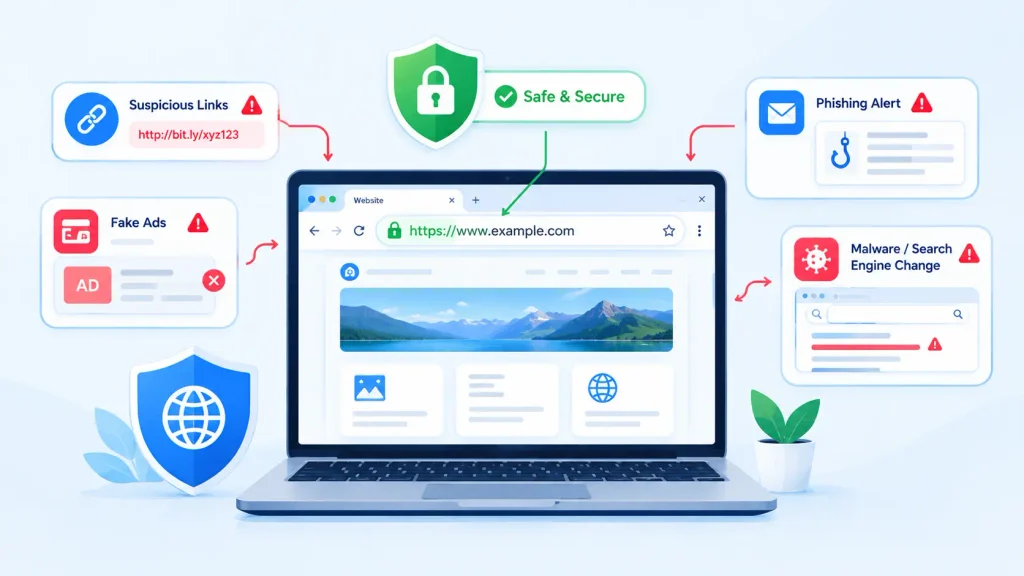
Searching from the address bar is as safe as searching on a search engine’s own page, but you still need to be careful about what you click afterward.
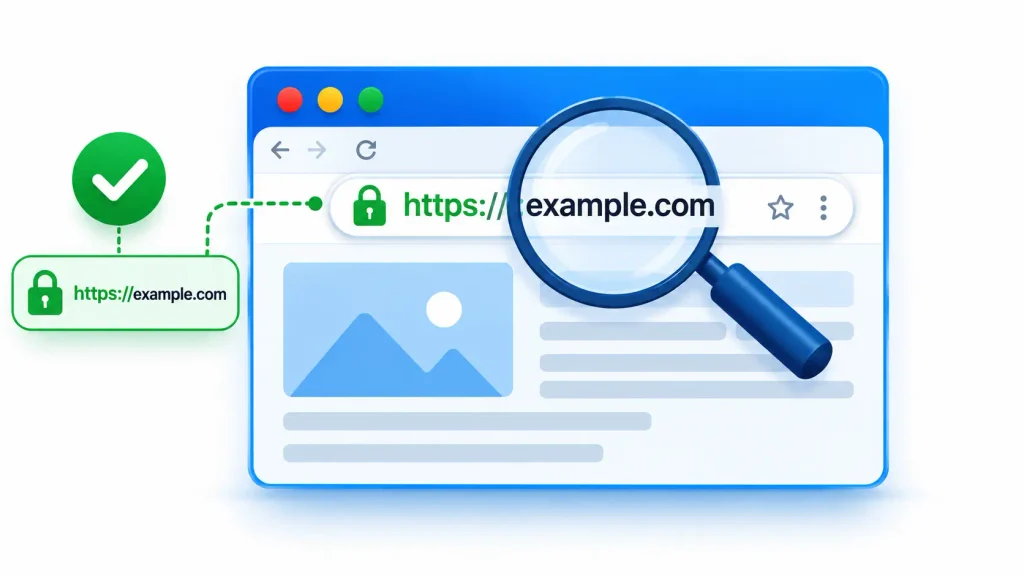
A result might point to a genuine site, an advertisement, or something suspicious. Before entering any personal details, look closely at the address on your screen. If you are logging in to a bank or online account, do not assume the top result is the real one. Check the domain first.
Also watch for odd behavior. If your default search engine changes without you touching it, Google warns that malware could be behind it. Sensible habits matter as much as understanding how the box works.
Why Combine Search and Navigation?
The answer is convenience.
Older browsers often gave you one field for addresses and another for searches, which forced you to decide where to type. Modern browsers removed that decision. One field handles both, and it can also dig through bookmarks, history, and open tabs.
It is a small design choice with a big effect on daily browsing.
Tips for Using the Box Well
You don’t need tricks, but a few habits help:
Know when to search and when to navigate. Type the address if you know the site. Describe what you want if you don’t.
Be specific. Instead of laptop, try best laptop for video editing under $1000. Details lead to more focused results.
Double-check before sharing private data. Confirm the site is the right one before typing passwords or payment details.
Treat suggestions as hints, not answers. They are there to save time, but the final choice is yours.
Bookmark your regulars. For sites you visit constantly, a bookmark beats searching every time.
Final Thoughts
Next time you open a blank tab and see “Search Google or type a URL,” give it a second look. It’s a small line, but a lot happens behind it. Your browser reads what you typed, DNS finds the right server, and if you asked a question instead, a search engine goes off to look for answers.
The rule of thumb is easy. If you know where you’re going, type the address, like example.com. If you don’t, type what you’re curious about, like “how web hosting works,” and let search do the digging.
I used to think these were two separate boxes. They’re not. It’s one bar that adapts to whatever you throw at it.
Quick takeaway: Search when you’re looking for something. Type a URL when you already know where it lives. This will save you a significant amount of time and help you avoid spending unnecessary time on it.